
Although the Golden Dashboard allows you to collect many important data-points from participants in the Additional Information section of the Opportunity creation/edit process, we understand that there are times where you will want to ask one-off questions, or questions in a very customized way!
The Custom Questions feature is in the Extras step of the Opportunity creation/edit process. Scroll down to the "Additional Questions and Document Collection" section. From there, you can select an unlimited number of questions to ask participants. However, we strongly recommend that you limit the number of custom questions as much as possible. Our research shows that, if too many questions are asked and the registration form becomes too lengthy, then there is a significantly lower chance that the participant will actually complete the registration and participate.
If you need the same information from every participant, such as an emergency contact or shirt size, consider your organization's required questions and profile fields instead. They are asked at sign-up or registration, and "Show Once" questions aren't asked again once answered.
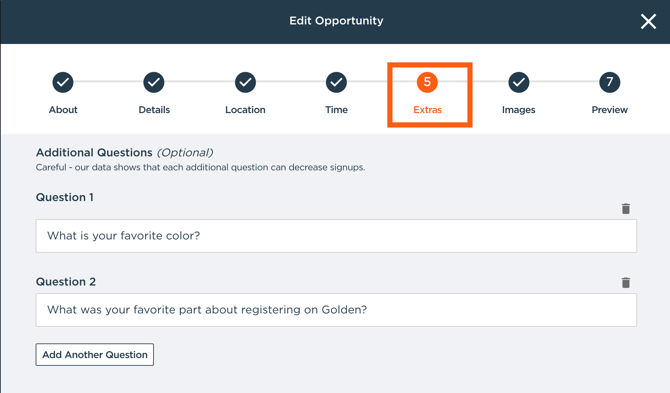
URLs entered in Custom Question templates are now automatically displayed as clickable hyperlinks in bright orange, making it easier for participants to access additional resources, waivers, or instructions during the sign-up process.
How do I see the answers to the custom questions?
The Dashboard gives users multiple ways to see the submitted answers to the custom questions including: the participant profile, the Opportunity management page, and exports. This section will walk you through the three aforementioned ways to view the answers, and what the differences are.
Multiple Choice Answers Automatically Create "Groups"
If you ask participants a multiple-choice question, Golden will automatically sort those people into Groups based on their answers (look in the "Additional Questions Groups" section).
Viewing responses from the Opportunity management page
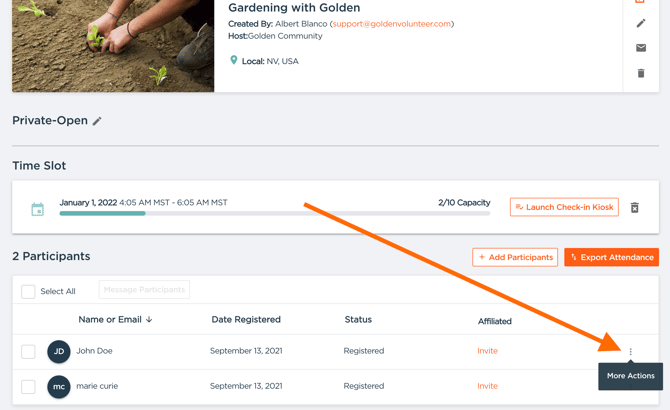
You can see the answers to the custom questions from an individual registration directly from the Opportunity management page. The Opportunity management page is found by clicking the link/title of the Opportunity from the My Opportunities tab. Once you are viewing the Opportunity registration details that has custom questions, you can use the three vertical dot menu on the "registration row" to open a menu that will allow you to either view the answers to the questions, or cancel the individual registration you are viewing.
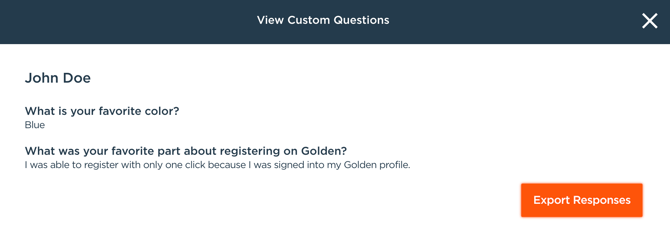
Below is an example of what the custom question responses will look like:
Viewing responses from the Participant Profile
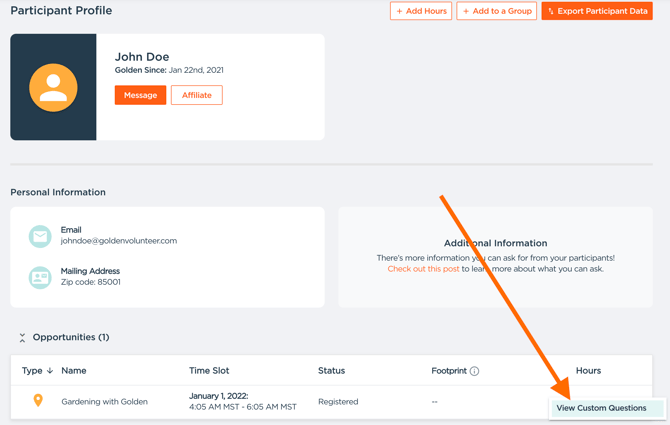
You can also view the answers to any Opportunity for a given participant by viewing their "participant profile". The participant profile can be found by clicking the participants' names on the Opportunity management page, or from the Participants tab. To access the answers to their custom question responses, navigate to the "Opportunities" section and use the three-dot vertical menu to be prompted with the option to view the answers to custom questions. This option is print-friendly, unlike the option to view responses from the Opportunity management page.
Viewing group responses
In order to view multiple participants' responses, you will need to have access to our Exports, which require a Community plan or higher.
If you do have a Community plan or higher, then you can easily see all of the answers for participants that are registered for a timeslot by using the "Export Attendance" option, which can be found on the Opportunity management page.