
Step 1: Select Opportunity Type
Select Bell Ringing as the Opportunity Type to begin the new and updated Opportunity Wizard.
Step 2: Select a Brand
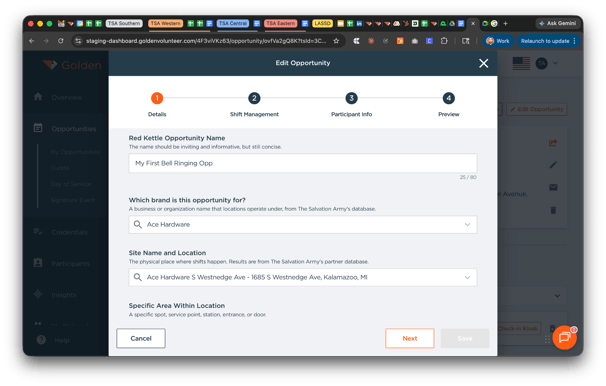
The first thing you’ll do is select the Brand for the Opportunity. Brand is Golden’s way of differentiating between terms like Partner, Company, or Location — think of it as the general place the Opportunity will take place (e.g., Walmart).
Step 3: Set a Location
Once you’ve selected your Brand, you’ll be prompted to enter the zip code of where the Bell Ringing Opportunity will take place. For National brands, this helps surface the nearest locations in the dropdown so you can quickly find what you’re looking for.
|
📌 Don’t see your location? Select “Create a New Location” and enter the Location Name, Physical Address, Store Number (if applicable), and any Location-Specific Guidelines (e.g., “Cannot play music”). |
Step 4: Choose a Bell Ringing Site
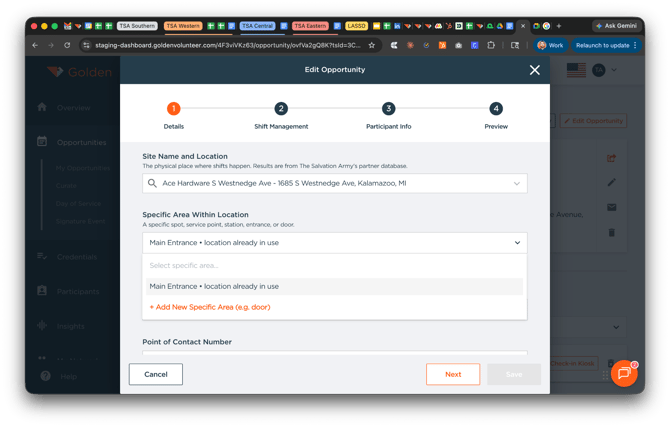
Next, specify where the Bell Ringing will physically be located within the store. The default is Main Entrance, but you can select from existing options or create a new “sub-site” — such as Garden Door, North Door, or Pharmacy Entry.
|
⚠️ Important Each Bell Ringing site is its own unique Opportunity. If you have multiple sub-sites at a single location, each one must be created as a separate Opportunity. |
Step 5: Review Brand-Specific Guidelines
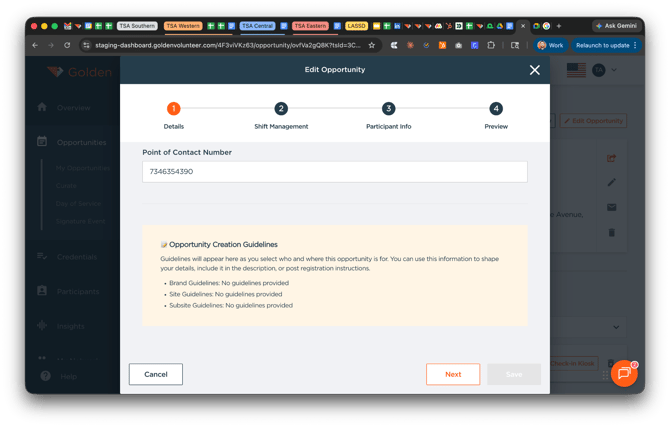
Before adding or editing a description, review the Brand-Specific Guidelines section carefully. This section contains important permissions and details that are critical to a successful Bell Ringing. Follow the prompts to fill in the requested information.
|
★ Pro Tip: Use a Template Using a Template is highly recommended. Templates pre-fill most fields — including descriptions, schedule structures, and guidelines — saving you significant time. |
You can skip or leave the default Revenue and General Ledger Codes unless you have specific override codes. Contact your Division or Territory HQ for more information.
Step 6: Create a Schedule & Add Shifts
With your location configured, you’re ready to build your schedule. Follow these steps:
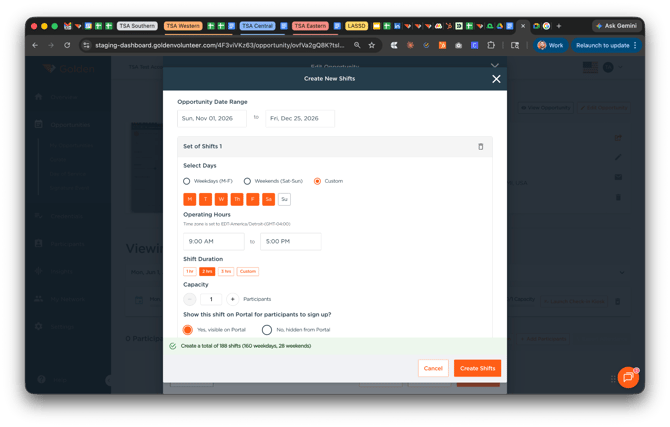
- Select Multiple Shifts or One Shift, then enter the date range — typically spanning the full bell ringing season.
- Select the days you’ll be recruiting volunteers to ring. For most Corps, choose the Custom option and pick specific days.
- Enter the day’s operating hours as approved by the Brand location (e.g., 9:00am–5:00pm).
- Select the Shift Duration (1, 2, or 3 hours, or custom). You can create as many shifts as needed — if hours differ on certain days, you can configure each one individually and set it for the whole season.
- Set the visibility for each shift. This is ideal for Corporate group shifts you want to create but not make public.
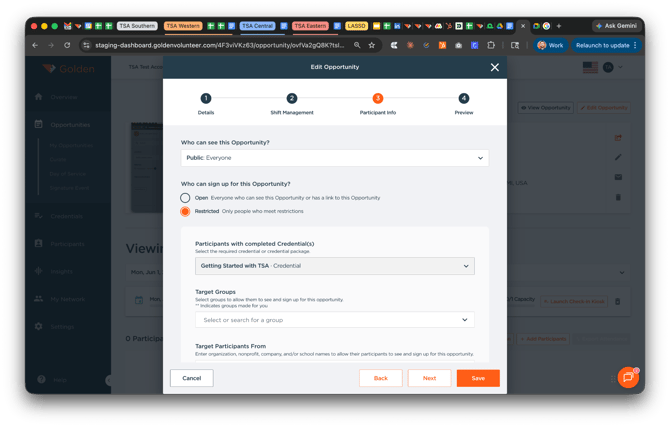
Step 7: Set Visibility & Sign-Up Options
These steps are similar to creating an “evergreen” opportunity on Golden:
- Select who can see the Opportunity and who can sign up for it.
- Optionally attach a Credential that Participants must complete before signing up.
- Kettle Opportunities default to a capacity of 1. If guests are allowed, set the max guest limit and choose whether to collect their information.
- Fill in any remaining options, and use the Custom Questions section for specific confirmations — for example: “Please confirm you are able to ring a bell for multiple hours in the elements” or “Are you able to lift 25 pounds?”
Step 8: Review & Publish
Once everything is filled in, you’ll be prompted to review your Opportunity. Take a moment to confirm all details are correct, then click Submit to publish.
Once published, you can share the Opportunity or create another Bell Ringing Opportunity to continue building out your season’s schedule.
Need help?
Fill out this brief form and a member of our support team will be in touch as soon as we can.