
The Participants tab shows all participants who have registered for one of your Opportunities, whom you have invited as participants, or whom you've added to a Group.
This article will show you how to remove participants from your Participants tab.
Note: removing participants from your Participants tab will NOT delete information regarding past registrations that they've made with you.
To remove a participant from your Participants tab, you must delete them from all of the Groups that they belong to, including the autogenerated groups. You can easily find all of the Opportunities and Groups they're part of by looking at their Profile—just click their name to view it.
Each time a participant participates in an Opportunity, they're automatically added to an autogenerated group with the format **Opportunity Name (with two asterisks at the beginning).
Pro-tip: Make sure to check the **Registered, **Invited, and **Uploaded Groups!
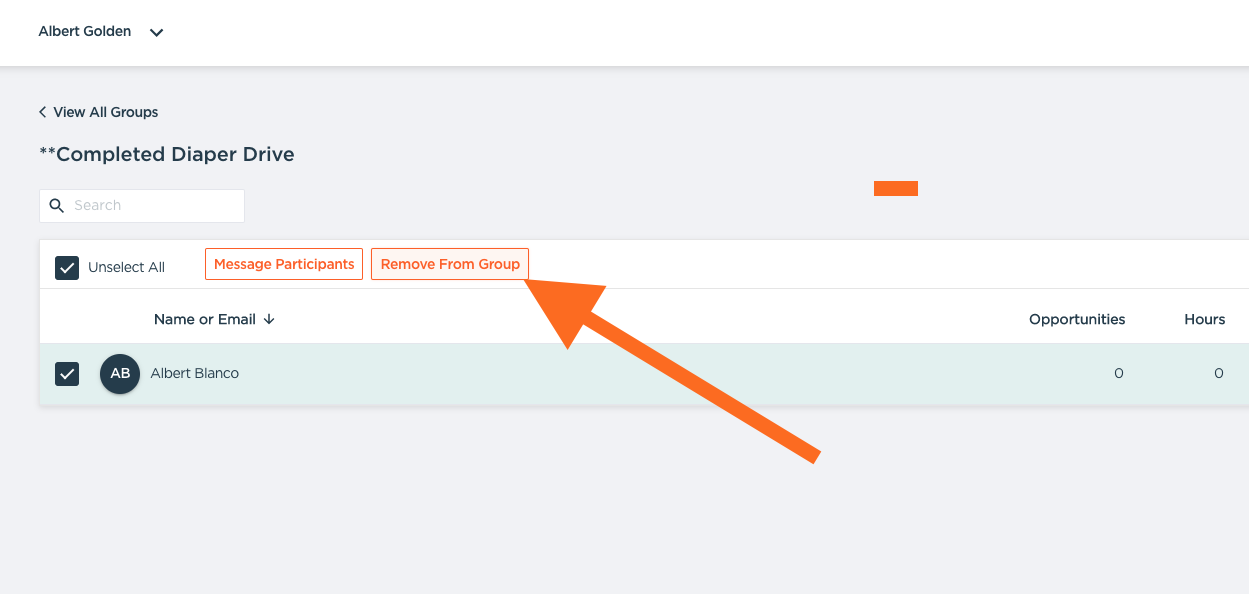
To delete someone from a Group, visit the Groups tab and select the individuals you want to manage. Once you've selected at least one participant, you'll have the option to remove them from their Groups.
And that's it! Once you've removed the participants from all of the Groups, they will no longer show on your Participants tab.
Questions? Contact us at support@goldenvolunteer.com