
Streamline Your Participant Management: Introducing Credentials
What are Credentials?
Golden’s Credentials feature enhances your participant onboarding by combining convenience with detailed tracking and vetting capabilities. Easily create, manage, and attach custom onboarding steps—such as forms, interviews, and document uploads—to your participant opportunities. Credentials simplify your processes, improve compliance, save you time, and let you track all onboarding requirements (including external ones) seamlessly from your organizer dashboard.
Use Cases for Credentials
Credentials simplify the process of screening and onboarding participants. For instance, an after-school mentoring program may require participants to submit an application, attend an interview, and provide reference checks. Golden’s Credentials automate these processes, streamlining participant onboarding.
Types of Credentials
Golden offers several credential types, enabling you to customize onboarding steps according to your organization's specific needs:
- Forms: Build custom application forms asking participants about their skills, experience, or availability before they join an opportunity.
- Interview: Notify participants that an interview is required. You can embed a Calendly link or provide contact details to help participants schedule their interviews.
- Video: Embed a brief orientation video to introduce participants to your organization or specific programs.
- Document Upload*: Collect PDF documents such as resumes or certifications directly from participants.
- Offline Process: Use this as a placeholder for processes like reference checks or in-person orientations.
*Note: All documents must be uploaded as a PDF.
Creating Credentials
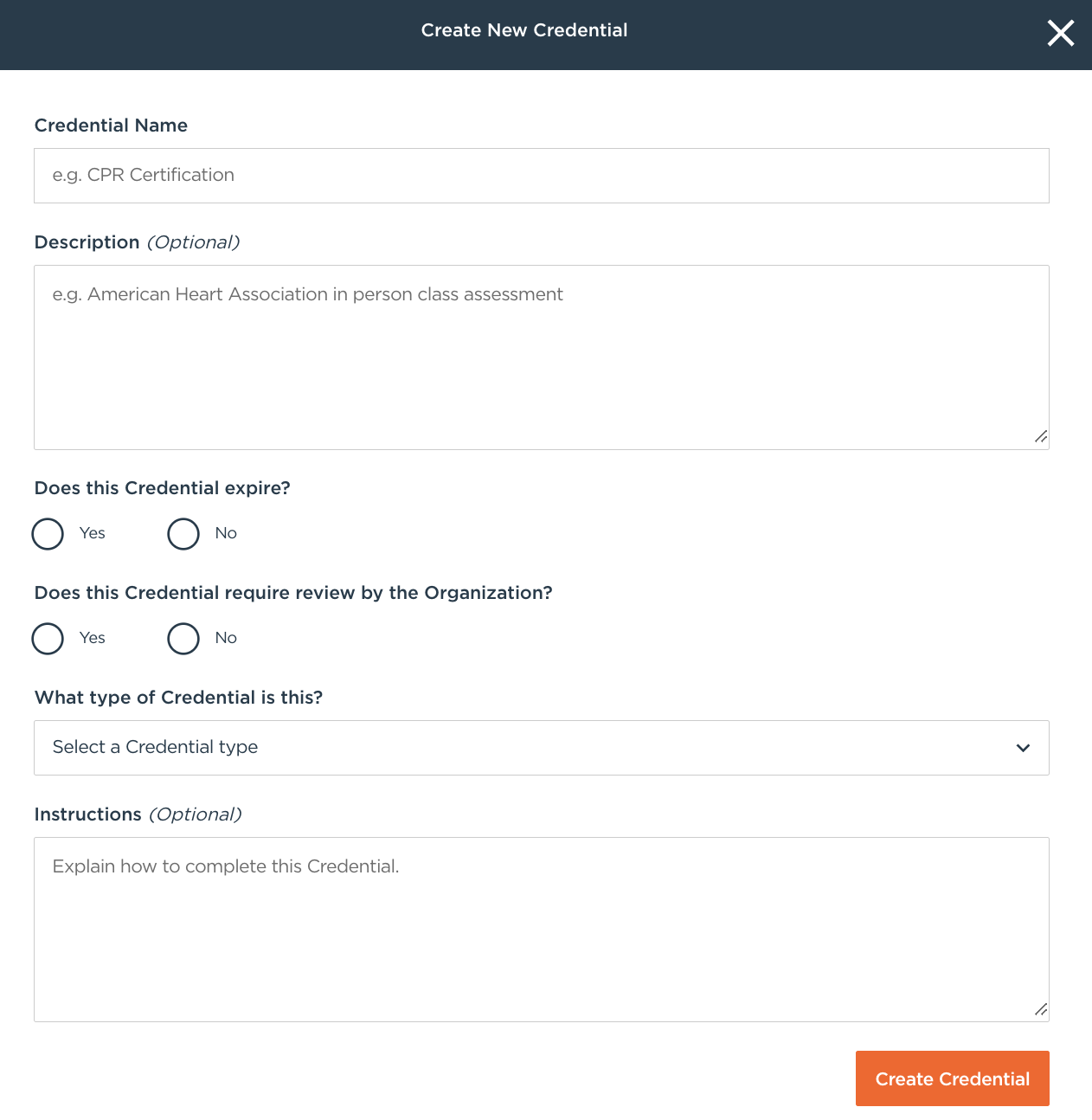
Navigate to the Credentials tab in your organizer dashboard and select Manage. Then click +Create New Credential and enter the following details:
- Credential Name: Clearly name your credential (e.g., "Volunteer Mentor Application" or "Mentor Interview").
- Description (Optional): Explain why participants need to complete this credential.
- Expiration: Set credentials to expire either on a fixed date or after a specific time (e.g., 3 or 6 months from completion).
- Required Review: Choose this option if you need to manually review participant responses.
- Credential Type: Select from Form, Interview, Video, Document Upload, or Offline Process. (Note: Form credentials allow you to create custom application questions.)
- Instructions: Provide clear instructions for participants on how to complete the credential.
Once created, you can edit, share, or delete credentials using the icons to the right of each credential entry.
Using Packages to Bundle Credentials
What Are Packages?
Packages let you bundle multiple credentials into a single onboarding process, significantly simplifying participant management and improving the user experience. By grouping credentials into a clear, organized package, participants can easily follow required steps, and organizers can efficiently track progress.
For example, an "After School Mentor" package could include an application form, interview, and reference check. You can also create different packages tailored to distinct participant roles, such as Mentor or Supervisor.
Creating a Package
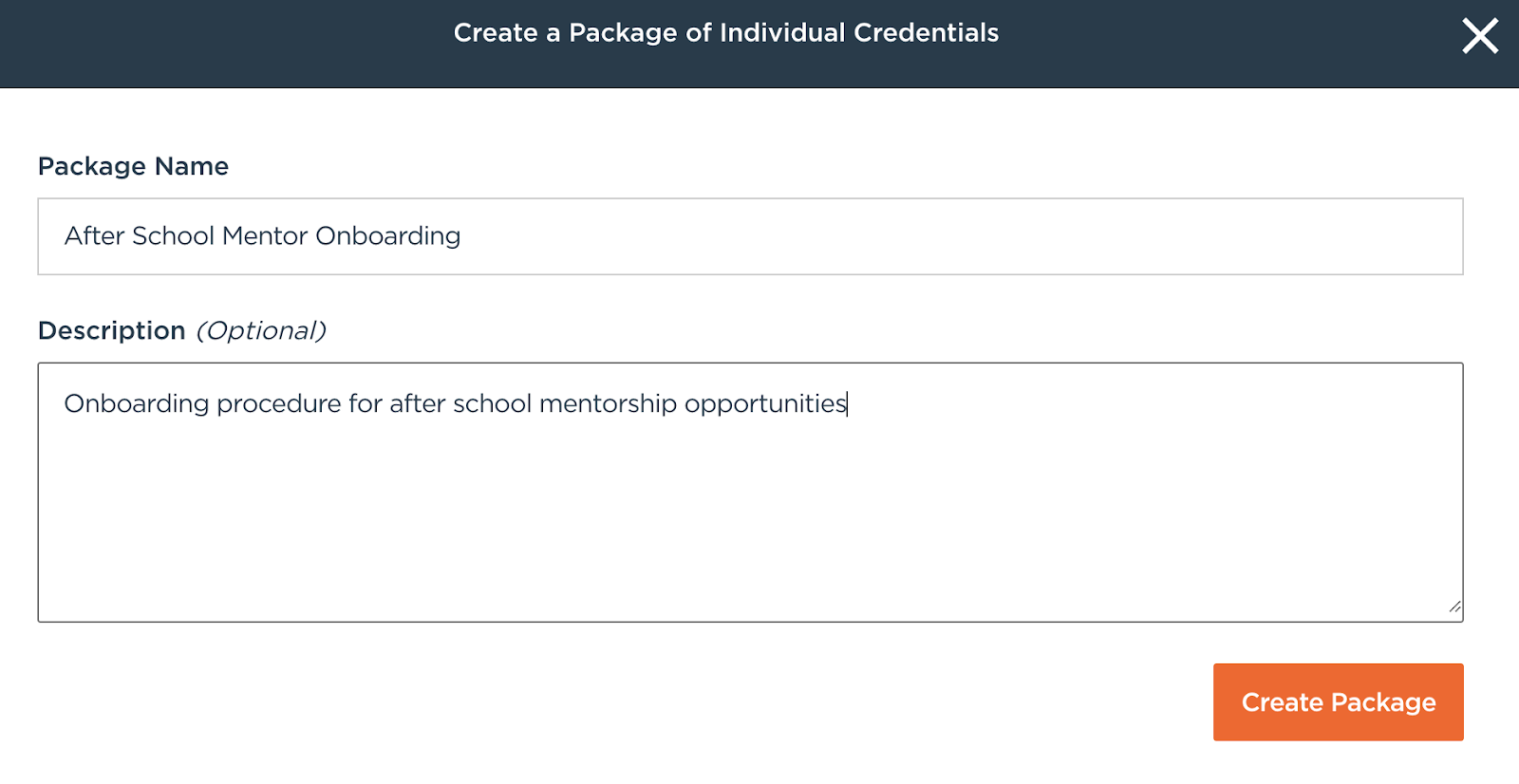
Under Manage Credentials, toggle to the Package tab and click +Create a Package. Provide a clear title and brief description, then click Create Package.
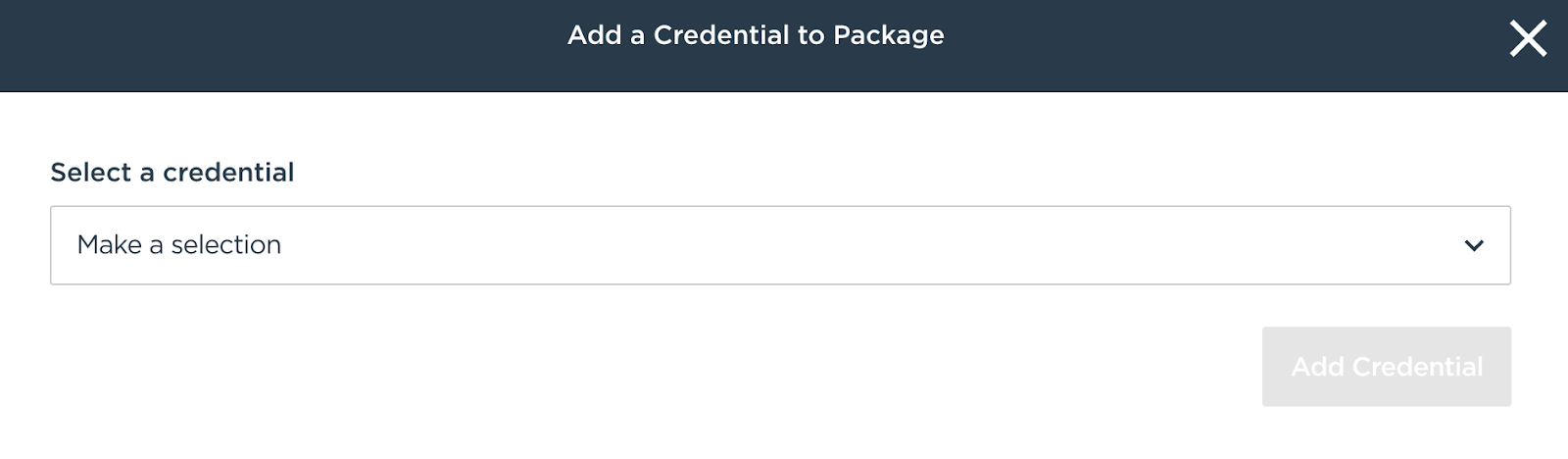
To add credentials to your package, click the edit icon next to your package name and select +Add Credential. Choose from your existing credentials. Arrange credentials using the arrows to define the order participants must follow—for example, requiring an application form to be completed before scheduling an interview.
Attaching Credentials and Packages to Opportunities
Use an opportunity's Privacy Settings to gate it with a credential or package. Visibility controls who can see the opportunity, and Accessibility controls who can register. For example, you can let everyone see an opportunity but allow only participants who hold a credential to sign up.
To attach a credential or package to an opportunity:
- Select an existing opportunity from the My Opportunities tab or create a new one.
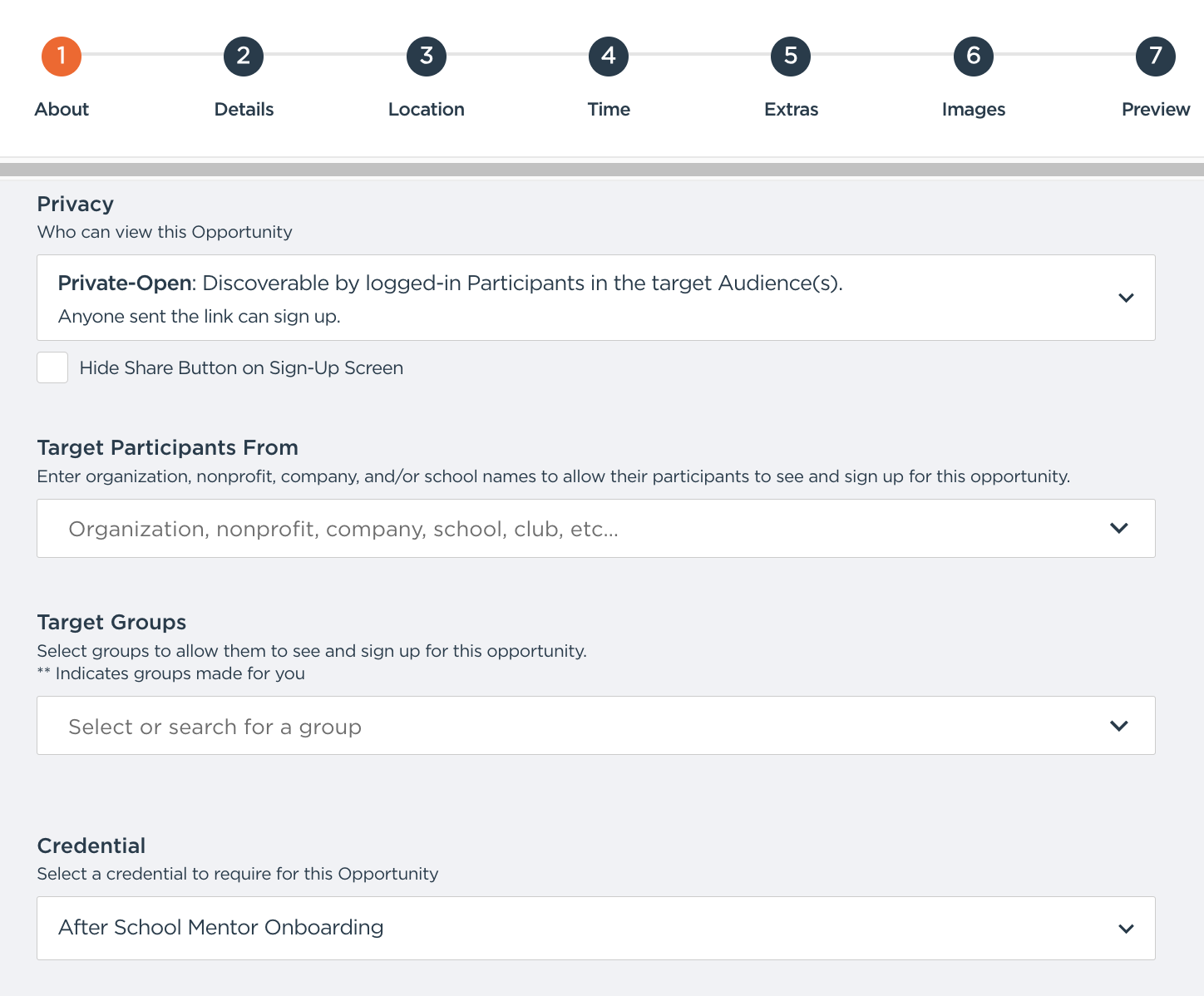
- In Section 1: About, set Accessibility to Restricted, choose Credentials, and select your credential or package. To also hide the opportunity from anyone who doesn't hold the credential, set Visibility to Private and select the same credential (or check "Same as selections above").
- Scroll to the Credential section and select your credential or package from the dropdown menu.
Note: To make an opportunity broadly available, select the Portal group option, which targets all participants who have created accounts on your portal.
Monitoring Participant Credential Status
Credential Status Review allows organizers to efficiently track and monitor participants' onboarding progress. Using the Status section in the Credentials menu, organizers can easily view each participant’s current onboarding stage (such as Started, Awaiting Participant, Complete, Expired, Declined, or Invited), make decisions to approve participants, request updates, or reject applicants, and ensure clear, organized communication throughout the onboarding process.
Statuses include:
- Started: Participant has initiated the credential process.
- Awaiting Participant: Participant needs to act after receiving feedback.
- Complete: Participant successfully completed the credential.
- Expired: Credential is no longer valid; renewal needed.
- Declined: Participant declined the credential or was rejected.
- Invited: Participant has received a direct invitation but has not yet started.
When reviewing a participant’s credential status, you have three options:
- Approve: Move the participant forward in the onboarding process.
- Request an Update: Provide feedback or request more information from the participant.
- Reject: Disqualify the participant from further participation.